


How to Make a Collage on your Instagram Story (Step-by-Step)
Step-by-step guide to creating an Instagram Story collage with layout and stickers, adding multiple photos, and increasing engagement.
Table of Contents
Instagram offers plenty of native tools that make it easy to create a clean, eye-catching collage for your story. Whether you want a sleek grid layout or a scrapbook-style collage with cutouts, stickers, and text, Instagram has you covered.
Here’s your step-by-step guide to making a collage on your Instagram Story.
Step 1: Open Instagram and Start a Story
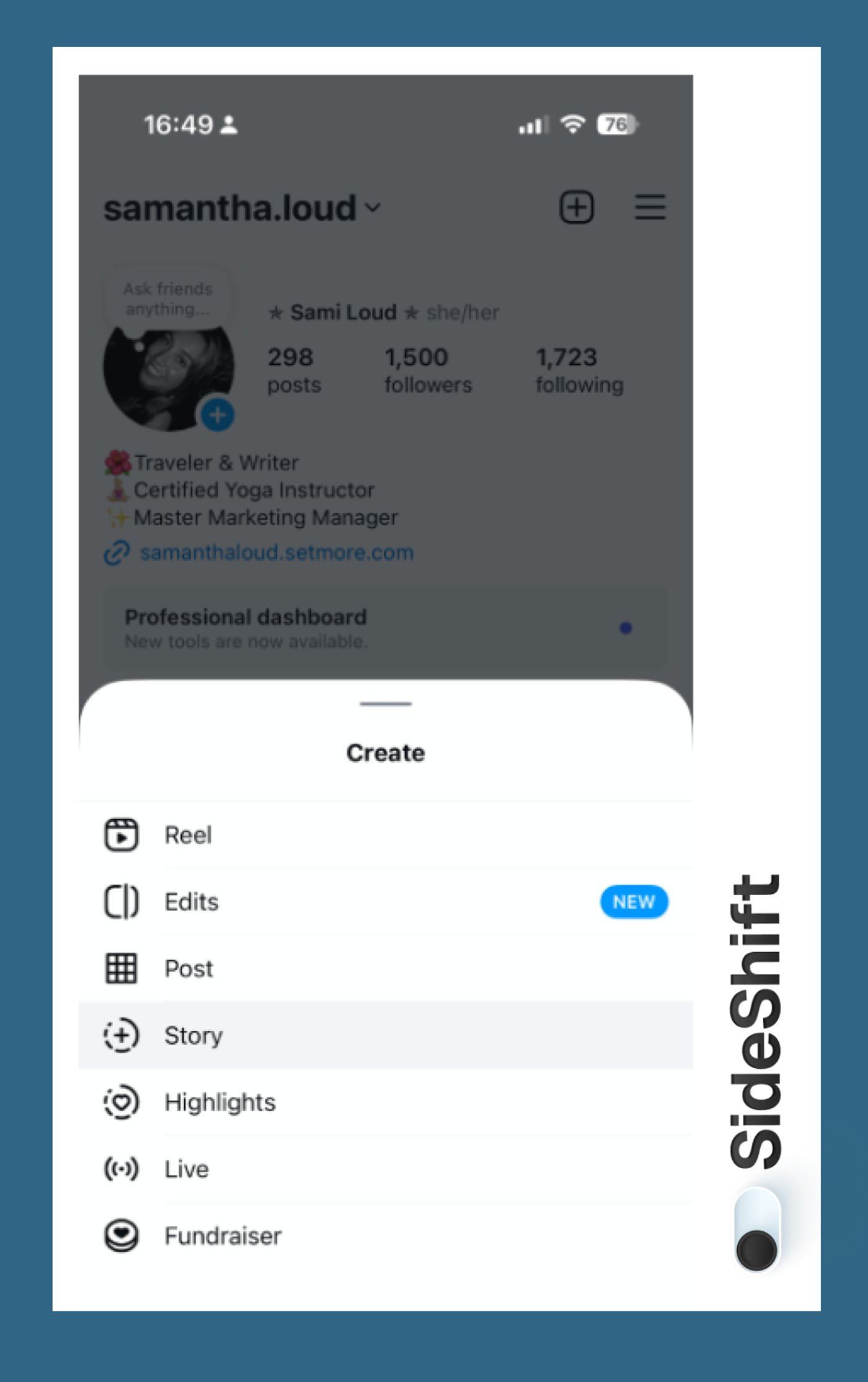
Open Instagram and tap your profile picture with the blue plus icon to “Add to Story.” Or tap the plus icon in the top right corner of your profile page and select “Story.”
Step 2: Choose the Layout Tool
On the camera screen, tap the camera icon on the left side. Then select Layout.
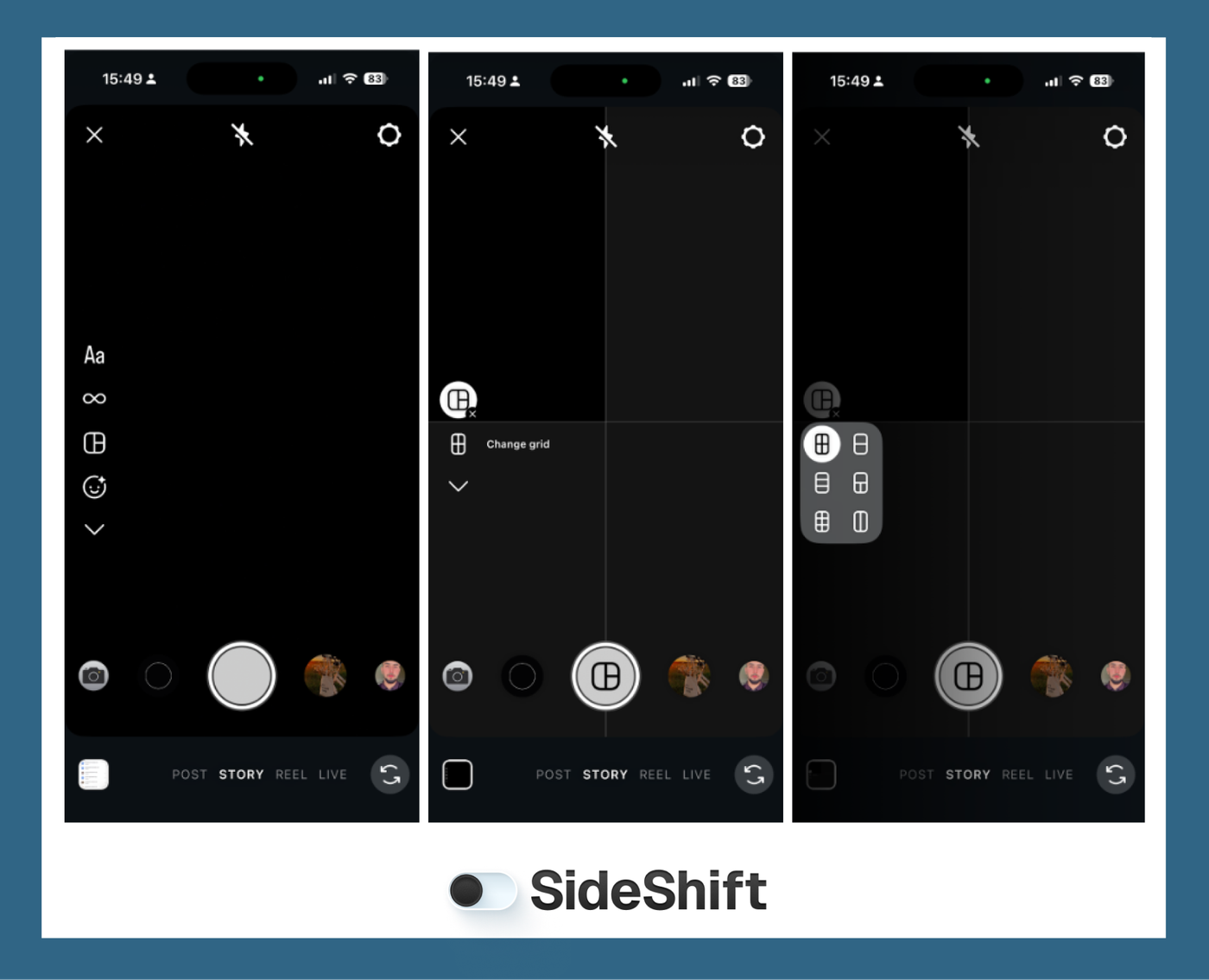
The default layout is a 2x2 grid, but you can change it to:
- 2 photos
- 3 photos
- 4 photos
- 6 photos
Choose the layout that best fits your style and the number of photos you want to include.
Step 3: Select Your Photos
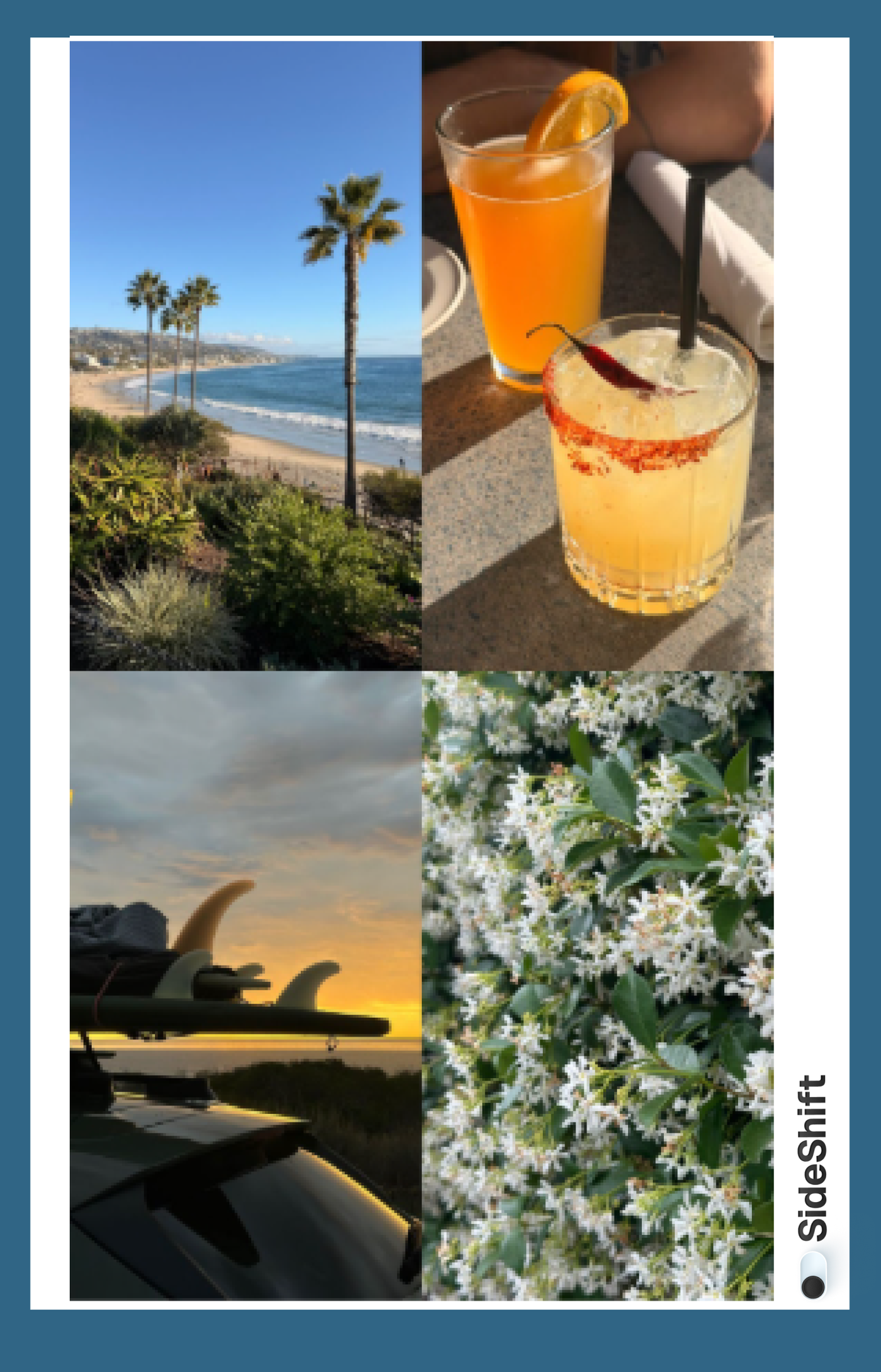
Once you’ve chosen your layout, it’s time to add photos. You can either take photos in real time, or choose photos from your camera roll. Instagram lets you select multiple images to fill the grid.
Step 4: Add Extras (Optional)
After your base collage is complete, you can add extra elements to make it more creative and unique, such as:
- Stickers
- Cutouts
- Text
- GIFs
- Music
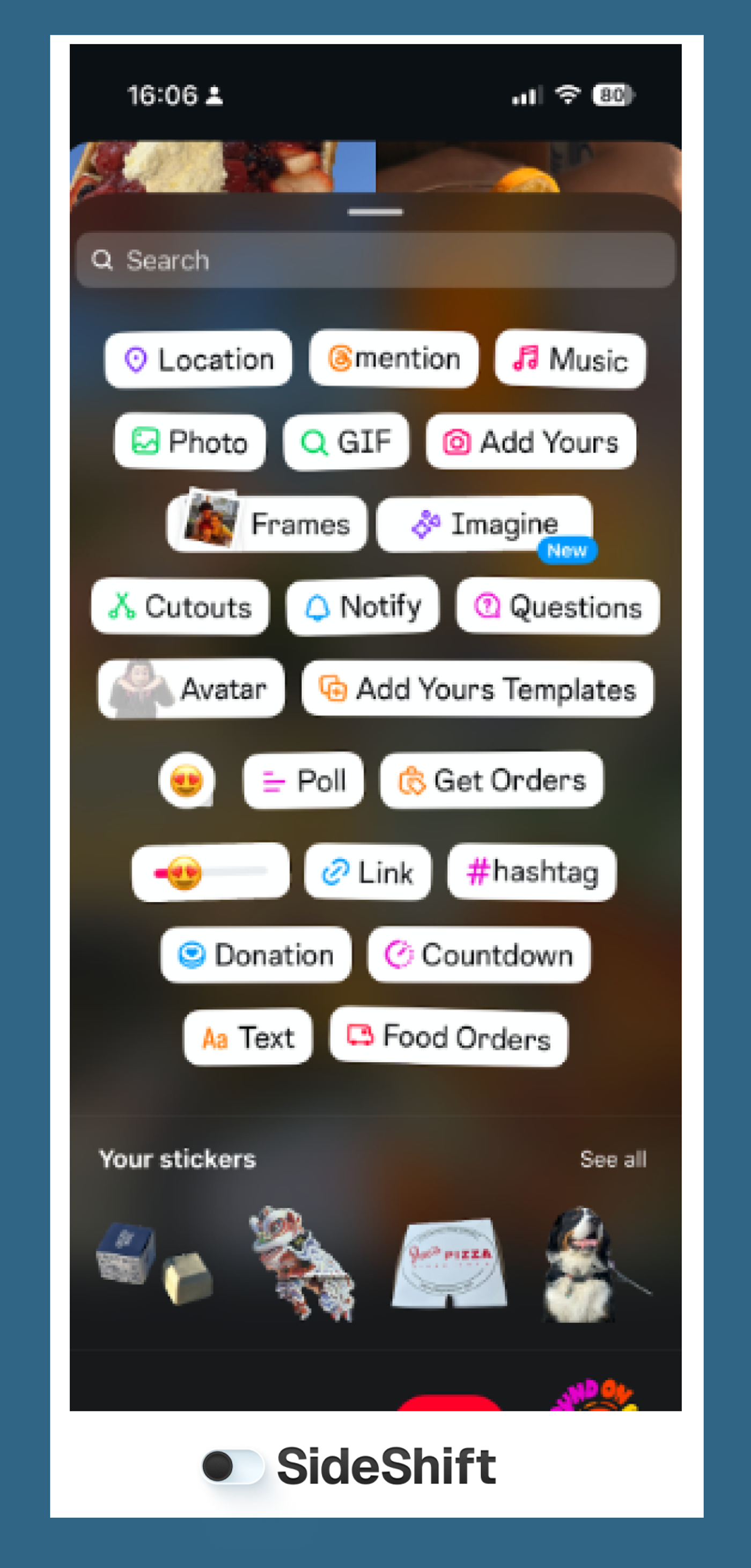
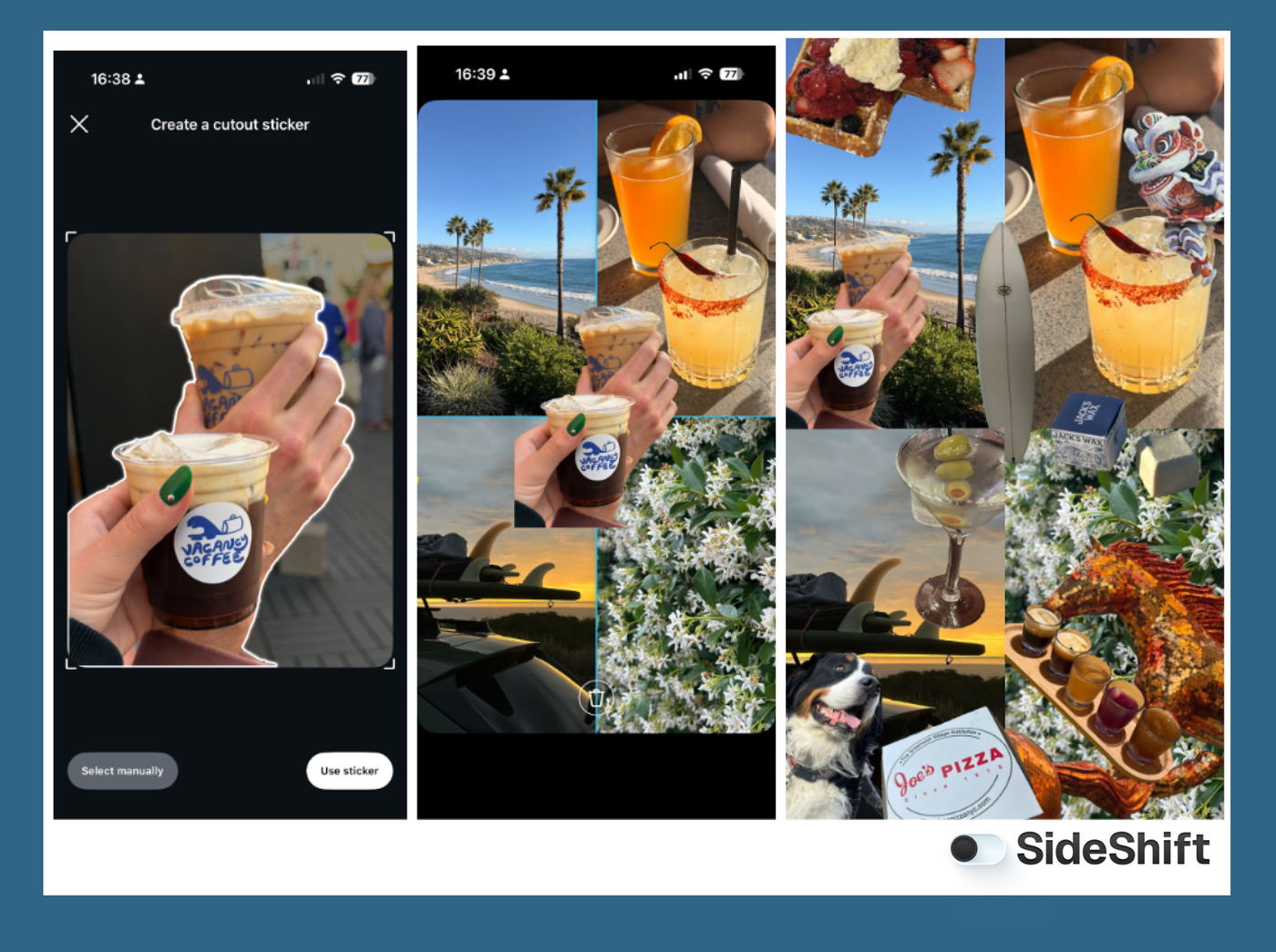
To add cutouts, open the Stickers tab and select the cutout tool. This allows you to turn photos from your camera roll into stickers.
Step 5: Save or Post Your Collage
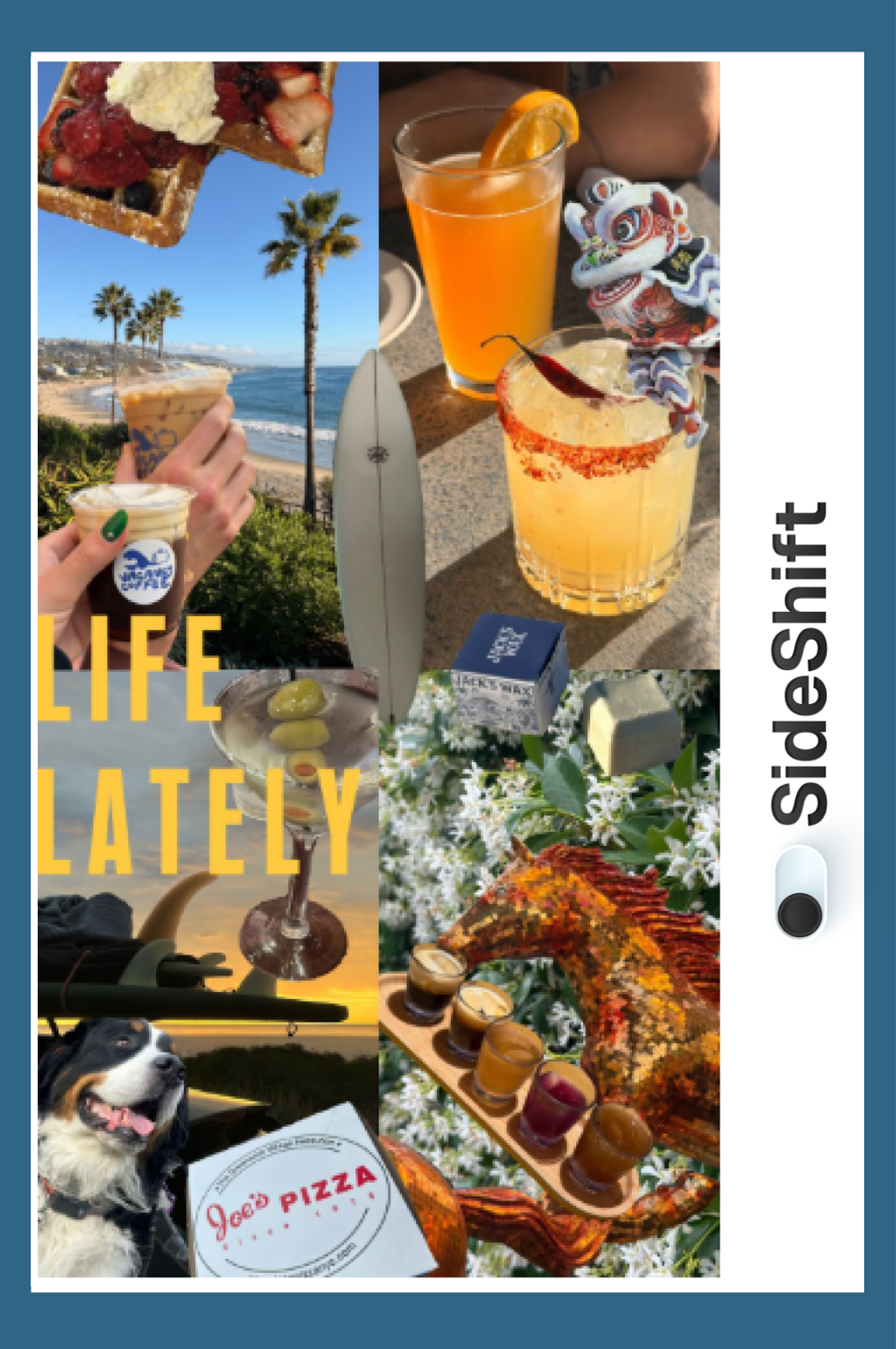
Once you’re happy with your collage, you can post it directly to your Story, or download it to your device to share across other platforms. You can also save the collage as a draft if you’re not done editing, or if you want to post it at a later date. Once your collage is live, keep in mind that viewers can screenshot it — here's how to know if someone screenshots your Instagram Story.
Create Unique Content Faster With SideShift
If you’re a creator or brand looking to scale your Instagram content without spending hours on design, SideShift makes it easy to turn ideas into high-quality UGC fast.
With SideShift, you can:
- Find creators who match your style and niche
- Collaborate on content with clear briefs and approvals
- Streamline your workflow with built-in delivery and payments
- Reuse content across platforms like Instagram, TikTok, and YouTube
Start your free trial on SideShift and connect with UGC creators ready to make creative, high-quality content for your Instagram Stories.
FAQs
1. Can I make a collage on Instagram Story without using Layout?
Yes! You can manually layer photos using stickers and the photo sticker tool, but Layout is the easiest way to create clean grid collages.
2. How many photos can you add to an Instagram Story collage?
With Layout, you can add up to 6 photos in a single collage. You can also add additional elements like stickers or text.
3. Can I use a collage in Instagram Reels?
Want to put this into practice?
SideShift connects you with vetted UGC creators who actually deliver. Start your free trial and post your first job in under 10 minutes.
Instagram Reels doesn’t support the Layout tool, but you can create a collage in Stories, save it, and upload it to Reels as a single video or image.
4. How do I add cutouts to my Instagram Story collage?
Open the Stickers tab, select the cutout tool, then choose a photo from your camera roll to turn it into a sticker.
5. Can I save my collage to post later?
Yes. You can save your Story as a draft or download the collage to your device for later use.